You've tried ChatGPT Images 2.0, typed a reasonable description, and gotten... something. Not bad, but not quite right. Maybe the text is garbled, the composition is off, or an edit demolished half the image you wanted to keep. The problem almost never lives in the model — it lives in the prompt.
Released on April 21, 2026, gpt-image-2 is OpenAI's most capable image generation model to date, powering the ChatGPT Images 2.0 experience with native thinking mode, near-perfect text rendering in 20+ languages, and support for up to 16 reference images per edit call. But even the most powerful engine needs precise instructions to hit its ceiling. These seven techniques consistently close the gap between "pretty good" and "exactly right."
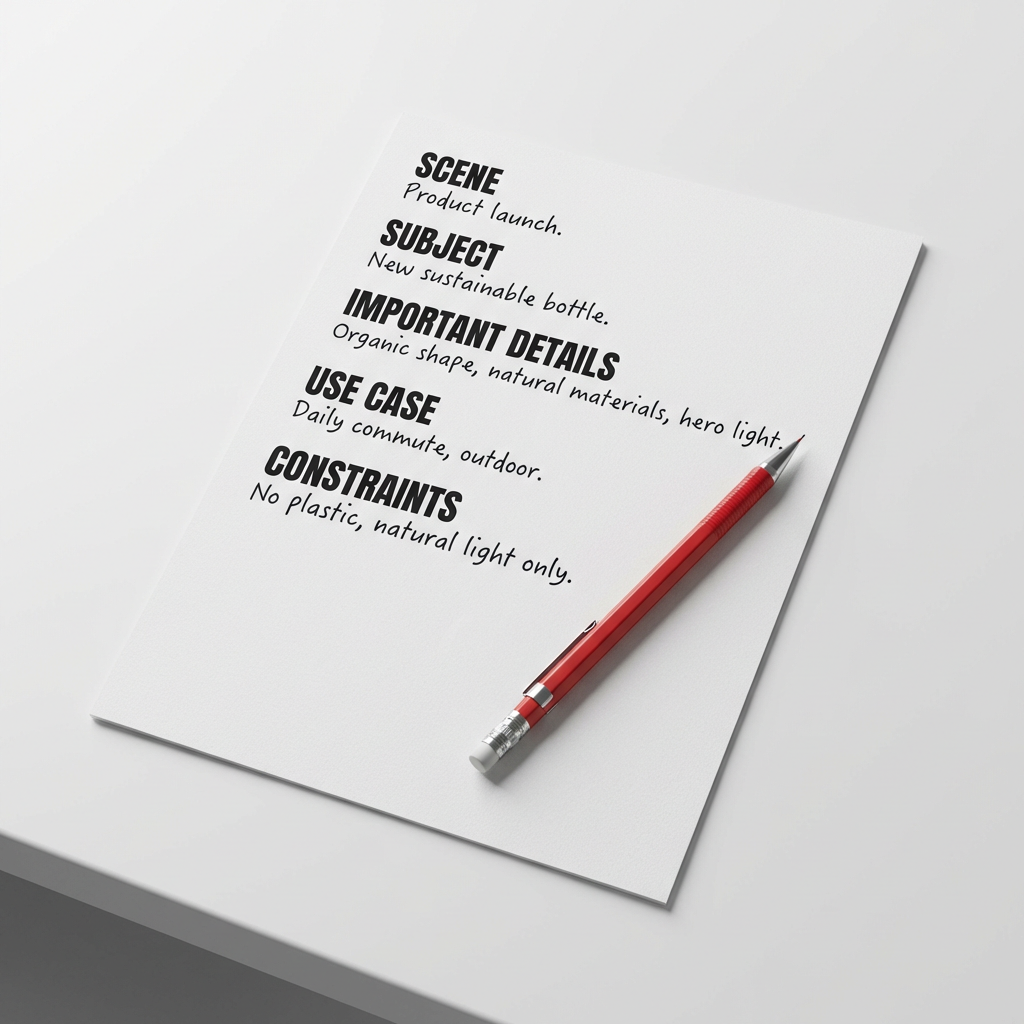
1. Use the 5-Slot Structure
Most prompts fail for the same reason a recipe fails when you're improvising from memory: too vague on the details that matter. GPT-Image-2 rewards structure. Think of your prompt like a creative brief — it needs five things, in a specific order:
Scene:             [where this happens — environment, time of day, background]
Subject:           [who or what is the main focus]
Important details: [materials, lighting, camera angle, composition, mood]
Use case:          [editorial photo / product mockup / infographic / poster]
Constraints:       [no watermark / preserve layout / no extra text / no logos]
Think of it like ordering a custom sandwich: say "make it good" and you get the default. Spell out the bread, the protein, the sauce, and what must stay off the plate — and you get exactly what you pictured.
The fifth slot — Constraints — is where most prompts leak quality. Describe the idea without bounding it and the model turns creative in directions you'll regret.
2. Visual Facts Over Vague Praise
Words like "stunning," "cinematic," "ultra-detailed," and "masterpiece" carry zero visual information. Excitement doesn't render — description does.
- ❌ "Beautiful golden hour lighting, incredibly atmospheric"
- ✅ "Warm orange sidelight from camera left, long shadows, subtle lens flare at the edge of the frame"
The second version gives the model something to draw. Treat every adjective as a unit test: if you can't describe what it looks like concretely, cut it and replace it with a texture, a light source, a camera angle, or a lens focal length.
This is exactly how a film director briefs a cinematographer. You don't say "make it feel epic." You say: "70mm lens, low angle, foreground dust particles, golden hour, silhouette against the ridge."
3. Master Text-in-Image Rendering
GPT-Image-2's text rendering is the biggest leap over its predecessors. Labels, signs, UI mockups, multilingual infographics — they all work. But they only work reliably when you treat text like a typography specification.
Three rules for clean text in images:
- Wrap literal text in quotes or ALL CAPS inside the prompt — e.g.,
headline (EXACT TEXT): "Fresh and Clean" - Specify placement and style — "bold sans-serif, centered, high contrast, clean kerning, readable from a distance"
- Add a hard stop — "Render this text verbatim. No extra characters. No duplicate text. No additional logos."
For unusual brand names or uncommon spellings, spell the word letter-by-letter in the prompt. For dense layouts with small text, set quality="high" — the low and medium settings occasionally sacrifice character accuracy under compression pressure.
4. The Edit Equation: Change + Preserve + Physics
Image editing in gpt-image-2 is powerful, but it drifts if you only describe what to change. Every edit prompt needs three components:
| Component | Example |
|---|---|
| Change | "Replace the dining chairs with natural oak wooden chairs" |
| Preserve | "Keep the camera angle, table shape, floor shadows, window reflections, and all cabinet geometry exactly as they are" |
| Physical realism | "Match the wood grain texture to the existing scene lighting. Add realistic contact shadows under the chair legs." |
Without the Preserve list, edits cascade into areas you never asked to touch. Include it on every iteration — even small tweaks — because the model does not automatically carry forward what you said two turns ago.
5. Label Your Reference Images
When compositing multiple images, gpt-image-2 supports up to 16 reference inputs per edit call. The catch: without explicit labeling, the model has to guess which image is the content source and which is the style reference — and it guesses wrong often enough to cost retries.
The fix is straightforward:
Image 1: the base scene to preserve.
Image 2: the jacket reference.
Image 3: the boots reference.

Instruction: Dress the person from Image 1 using the jacket from Image 2
and boots from Image 3. Preserve face, pose, background, and lighting
from Image 1. No extra accessories. No watermark.
Think of it like a film crew call sheet. A director doesn't say "someone handle the camera." They write: Crew 1 — sound, Crew 2 — lighting, Crew 3 — crane operator. When each input has a named role, the composition comes together cleanly.
6. Activate Thinking Mode for Multi-Scene Coherence
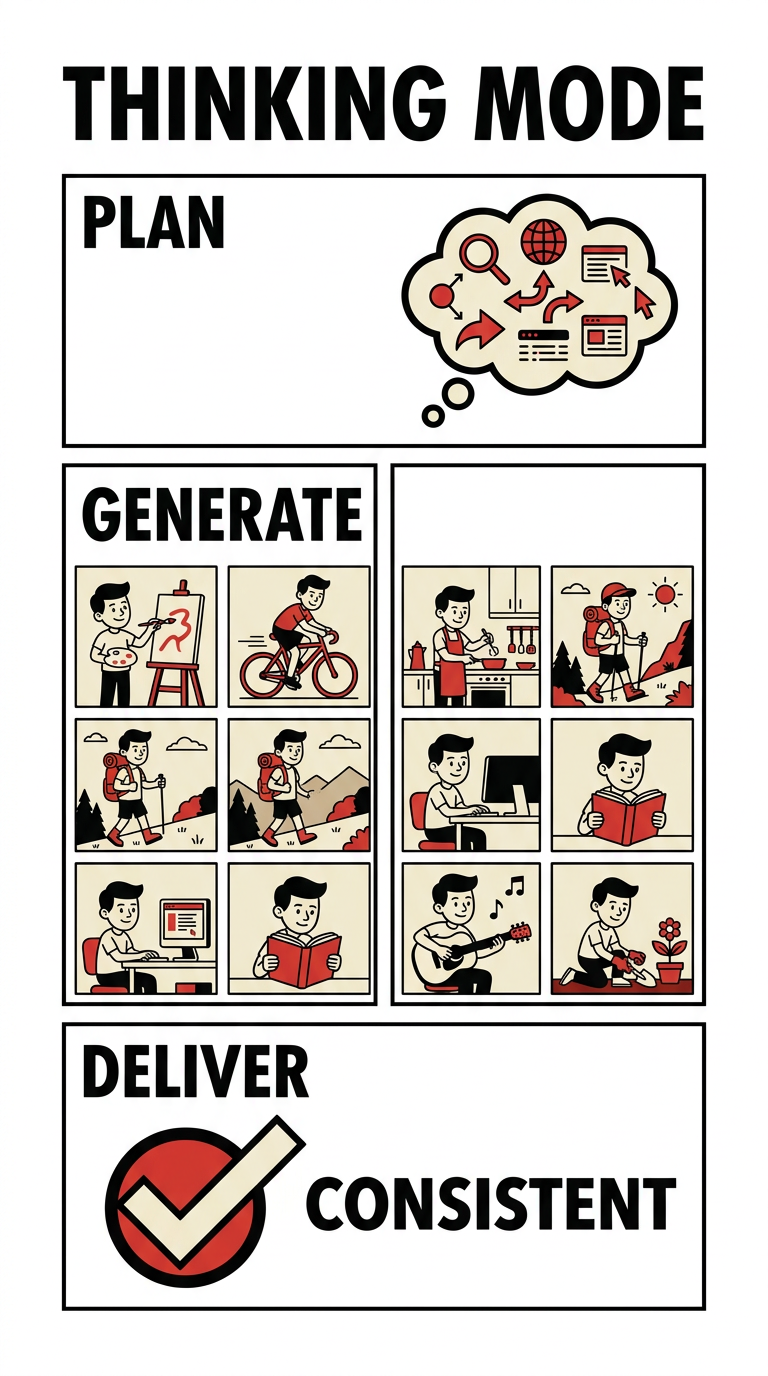
Thinking Mode is gpt-image-2's highest-leverage feature for complex projects. When active, the model spends time planning before rendering — it searches the web for real-time context, verifies visual facts, and maintains character and style consistency across up to 8 images generated from a single prompt.
This unlocks workflows that previously required expensive fine-tuning:
- Multi-page comic strips with consistent character design across every panel
- Storyboard sequences with shared lighting and set continuity
- Brand asset batches — icon sets, ad variants, social cards — in one unified visual language
In ChatGPT, activate it with the thinking toggle before generating. For API users, Thinking Mode runs through the standard reasoning-enabled model path. The extra time — typically 30–90 seconds — eliminates the character drift that was the most common failure mode in gpt-image-1 workflows.
7. Use Quality Settings as Creative Levers
GPT-Image-2 offers three quality tiers, and they're not just a speed-versus-quality dial. They're creative decisions:
| Setting | Best for | Trade-off |
|---|---|---|
low |
Rapid ideation, batch previews, A/B variant testing | Softer fine details, occasional text artifacts |
medium |
Most production work — portraits, product shots, ads | Balanced on both dimensions |
high |
Dense text, infographics, close-up portraits, print assets | Slower generation, higher per-image cost |
Start at medium for exploratory work and iterate fast. Switch to high only when the output contains small text, scientific diagrams, or label-heavy layouts. For high-volume pipelines generating dozens of variants, low delivers sufficient fidelity at a fraction of the cost — saving high for the finals.
AI Image Generation Tools: A Neutral Comparison
| Tool | Text Rendering | Image Editing | Thinking Mode | Multilingual | API Access |
|---|---|---|---|---|---|
| gpt-image-2 | Excellent | Yes (up to 16 refs) | Yes | Yes (20+ languages) | Yes |
| Imagen 4 (Google) | Good | Limited | No | Good | Yes |
| Midjourney v7 | Limited | Basic | No | Limited | No |
| Ideogram 3 | Good | Yes | No | Moderate | Yes |
| Stable Diffusion 4 | Improving | Yes | No | Limited | Yes |
Framia.pro and Structured Image Workflows
When you're generating assets regularly — social posts, product visuals, ad variants, pitch deck slides — the friction isn't usually the model. It's the pipeline: tracking which prompts produced which outputs, managing versioned reference images, and keeping a team aligned on the approved visual direction.
Framia.pro is an AI productivity platform built for exactly this kind of multi-model, multi-asset workflow. Rather than starting from scratch in ChatGPT every session, teams working inside Framia store their prompt templates, five-slot structures, and reference libraries in a shared workspace. When a campaign calls for three ad variants, a hero image, and consistent typography across every asset, Framia keeps those outputs connected — not scattered across browser tabs and download folders.
The gpt-image-2 techniques in this guide — structured prompting, edit chains, multi-image compositing — become repeatable systems when they live in a shared workspace rather than individual chat histories.
A 5-Step Workflow to Apply Today
- Name the artifact first. Before writing a single word of prompt, decide what you're actually making: editorial photo, product mockup, infographic, UI screenshot, comic panel. This decision shapes every prompt choice that follows.
- Fill all five slots. Write your Scene, Subject, Details, Use Case, and Constraints before generating.
- Pick your quality level deliberately. Start at
medium; escalate tohighonly when the output contains dense text or needs print fidelity. - Edit with the three-part formula. Change + Preserve + Physical Realism. Re-specify the Preserve list on every iteration.
- Use Thinking Mode for multi-scene work. Whenever character or style consistency across multiple images matters, Thinking Mode is the fastest path to coherent results.
FAQ
What is gpt-image-2 and how is it different from DALL-E 3?
GPT-Image-2 (released April 21, 2026) replaced DALL-E 3 as OpenAI's primary image generation model. Key differences include native thinking mode, dramatically improved text rendering across 20+ languages, support for up to 16 reference images per edit call, and flexible resolution up to 3840×2160 pixels. OpenAI recommends gpt-image-2 for all new workflows; DALL-E 3 is legacy-only as of April 2026.
Does Thinking Mode cost extra when using the API?
As of April 2026, Thinking Mode is included for ChatGPT Plus, Pro, and Team subscribers at no additional per-image charge. API users pay standard gpt-image-2 token pricing plus any additional reasoning tokens consumed during the thinking step. Check OpenAI's pricing page for current per-token rates, as they are subject to change.
How do I stop gpt-image-2 from changing parts of my image I didn't ask to edit?
Include an explicit Preserve list in every edit prompt, even for small changes. Write: "Change only [X]. Preserve [face, pose, clothing, background, camera angle, all text] exactly as they appear in the input image." Repeating the preserve list on each iteration is the single most reliable technique for preventing cascade edits.
Can gpt-image-2 generate working QR codes?
Yes, with caveats. In Thinking Mode, gpt-image-2 reasons through QR encoding logic before rendering, achieving community-tested scan rates of approximately 60–70% (as of April 2026). For production use cases where scan reliability is non-negotiable, generate the QR code separately with a dedicated tool and use gpt-image-2 to composite it into a design.
What are the best resolutions for common social media formats?
For Instagram square: 1024×1024. For portrait posts: 1024×1536. For landscape banners: 1536×1024. For LinkedIn headers: 1536×768. All resolutions must be multiples of 16 and respect the 3:1 maximum aspect ratio constraint. Sizes above 2560×1440 are considered experimental and may produce more variable results.
The Brief Is the Work
Great images from gpt-image-2 don't come from longer prompts — they come from more precise ones. The seven techniques above aren't clever hacks. They're the same fundamentals any creative director uses when briefing a design team: specificity, clear constraints, and a hard separation between what moves and what stays fixed.
The model has the capability. Your prompt is the job description. Write a tighter brief, and the results follow.
If you want to make these techniques part of a repeatable team workflow, Framia.pro gives you the workspace to do it — storing prompt templates, reference assets, and output history so every campaign starts from a stronger baseline. Visit Framia.pro to get started.