Step 1: Prompt
Sign up for a Framia Pro account and open the editor. Upload your image and describe the edits you want in the prompt box.

Retouch, upscale, and clean up photos using Framia Pro's free AI photo retoucher. Remove backgrounds, smooth skin, whiten teeth, and export in 4K. Get started now!
Follow these simple steps to retouch, clean, and export your photos using Framia Pro's AI photo retouch tool:
Explore the core features of Framia Pro's AI photo retouch tool and get more out of every image you edit.
Run your photo through Framia Pro's AI models and apply skin smoothing, tone correction, and detail refinement in no time. The AI scans each image individually, so adjustments stay accurate to the original lighting, texture, and facial structure in your photo.
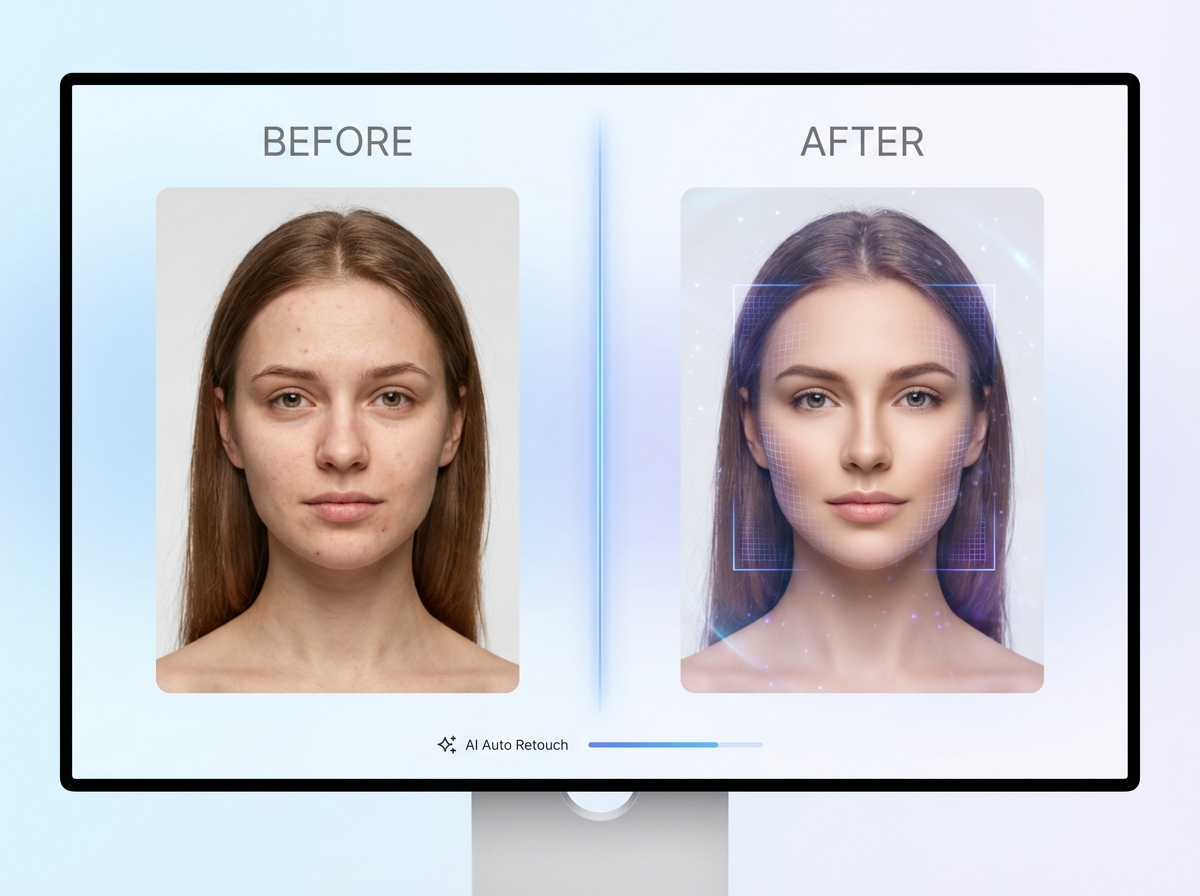
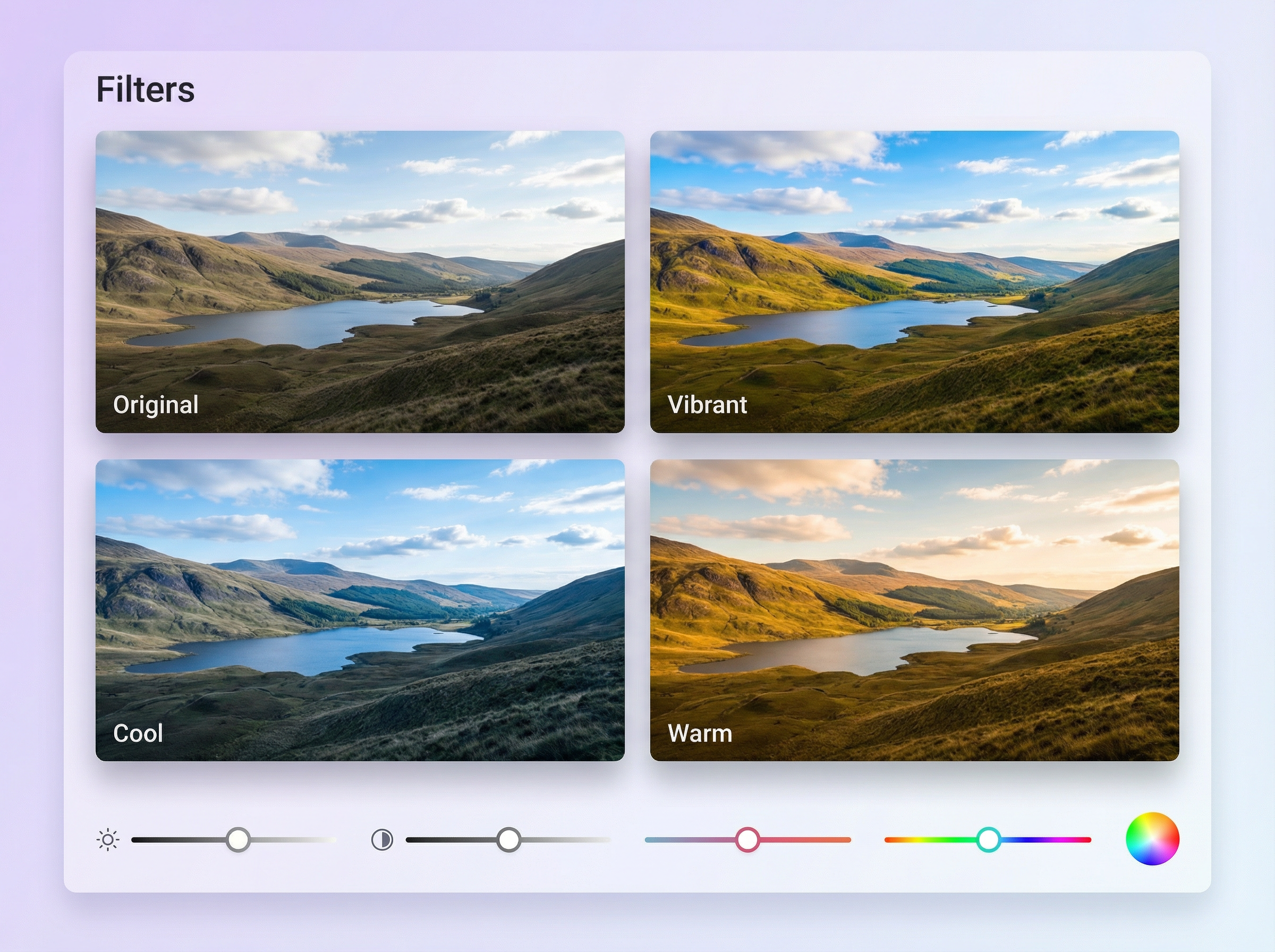
Describe any filter or specific color values like saturation, contrast, and white balance, and Framia Pro uses AI to apply them to your uploaded photo. Each adjustment updates in real time, so you see exactly how the change affects your image before saving it.
Click just once to remove your existing background and swap it with a solid color, gradient, or custom scene in Framia Pro. The AI detects edges precisely, which include hair and fine details, so the subject stays clean, and the new background looks natural.
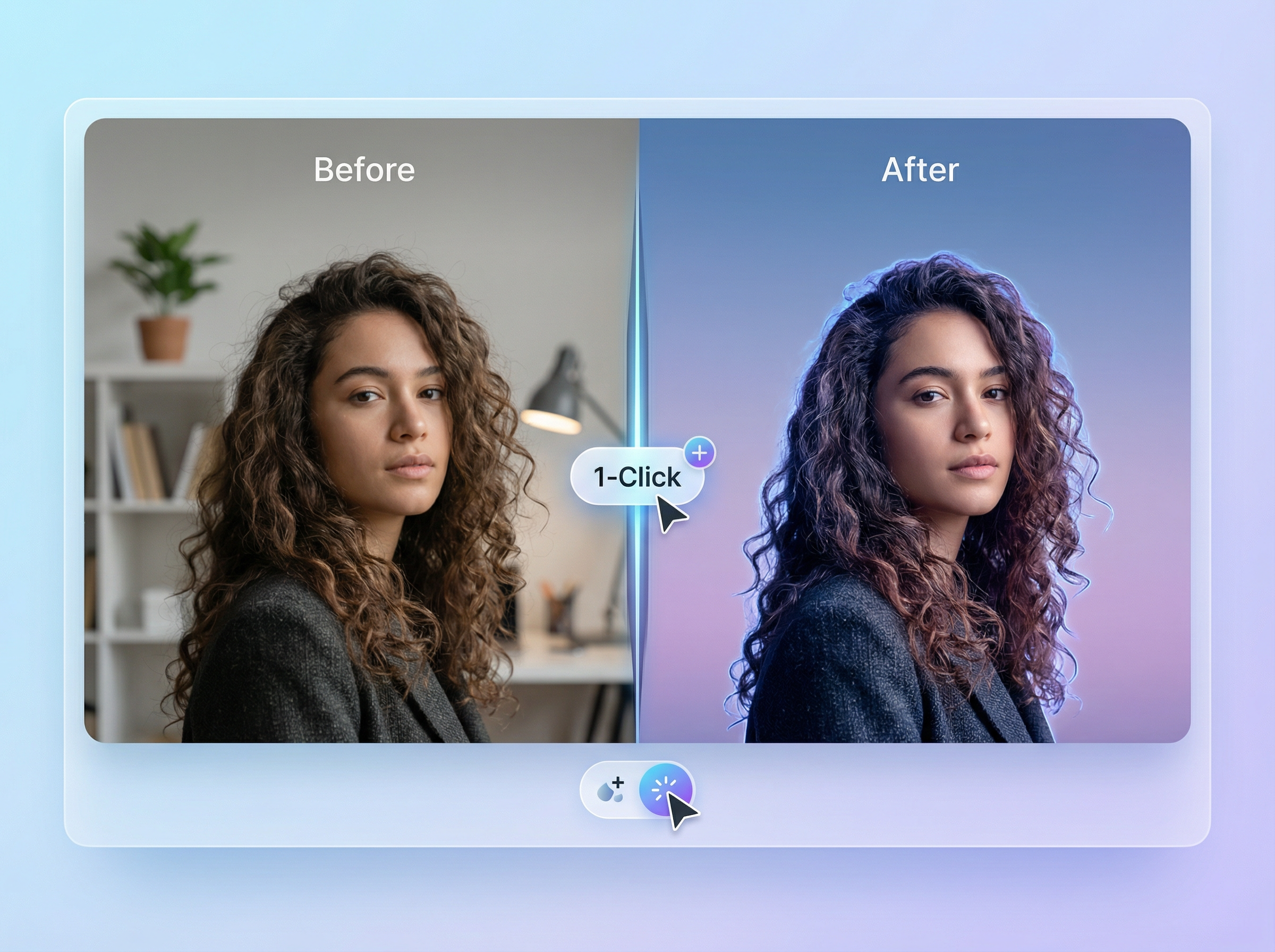
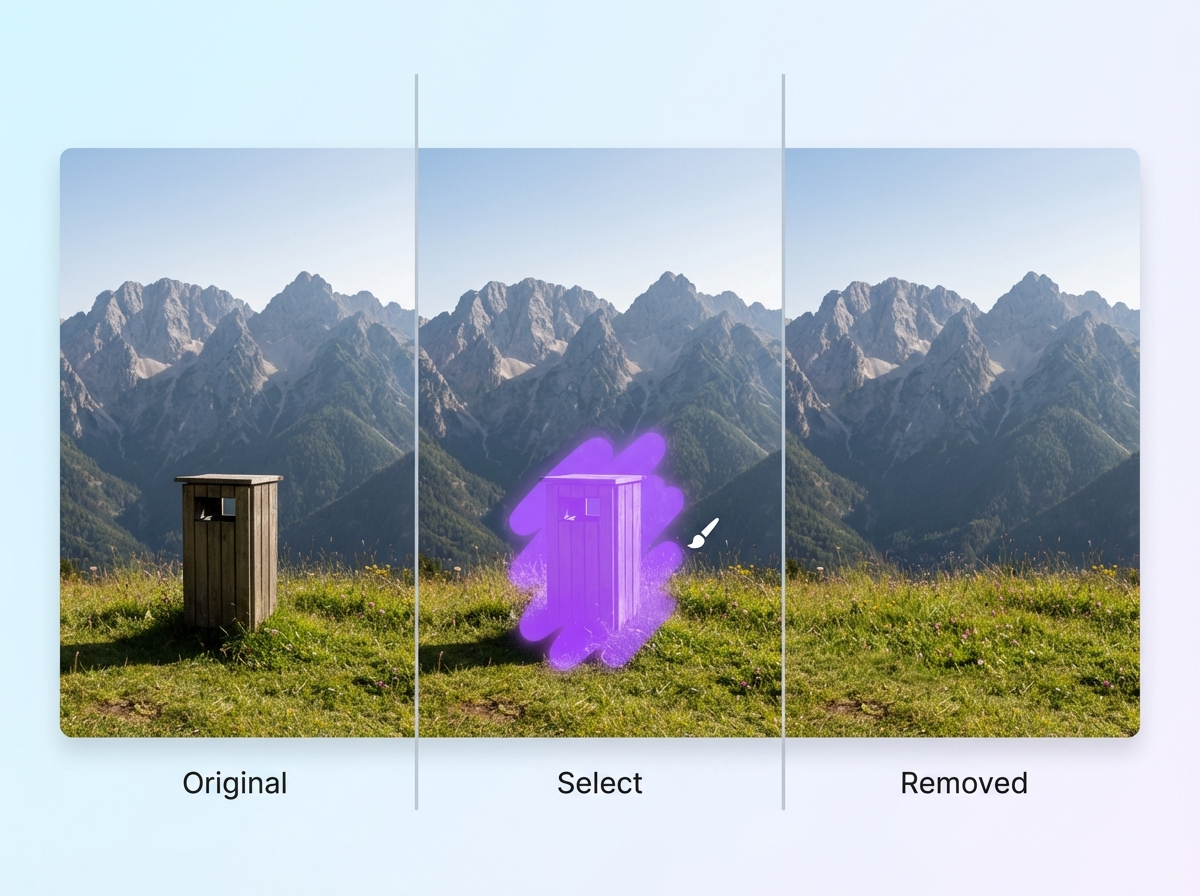
Brush over any object you want gone, and Framia Pro fills the area using surrounding pixels to produce a seamless result. This works on backgrounds, people, text overlays, and other distractions that pull attention away from your main subject.
Run a low-resolution image through Framia Pro's upscaling model and recover sharpness, edge detail, and texture at 4K output. The AI adds detail rather than simply stretching pixels, which keeps your image sharp even at larger display sizes.
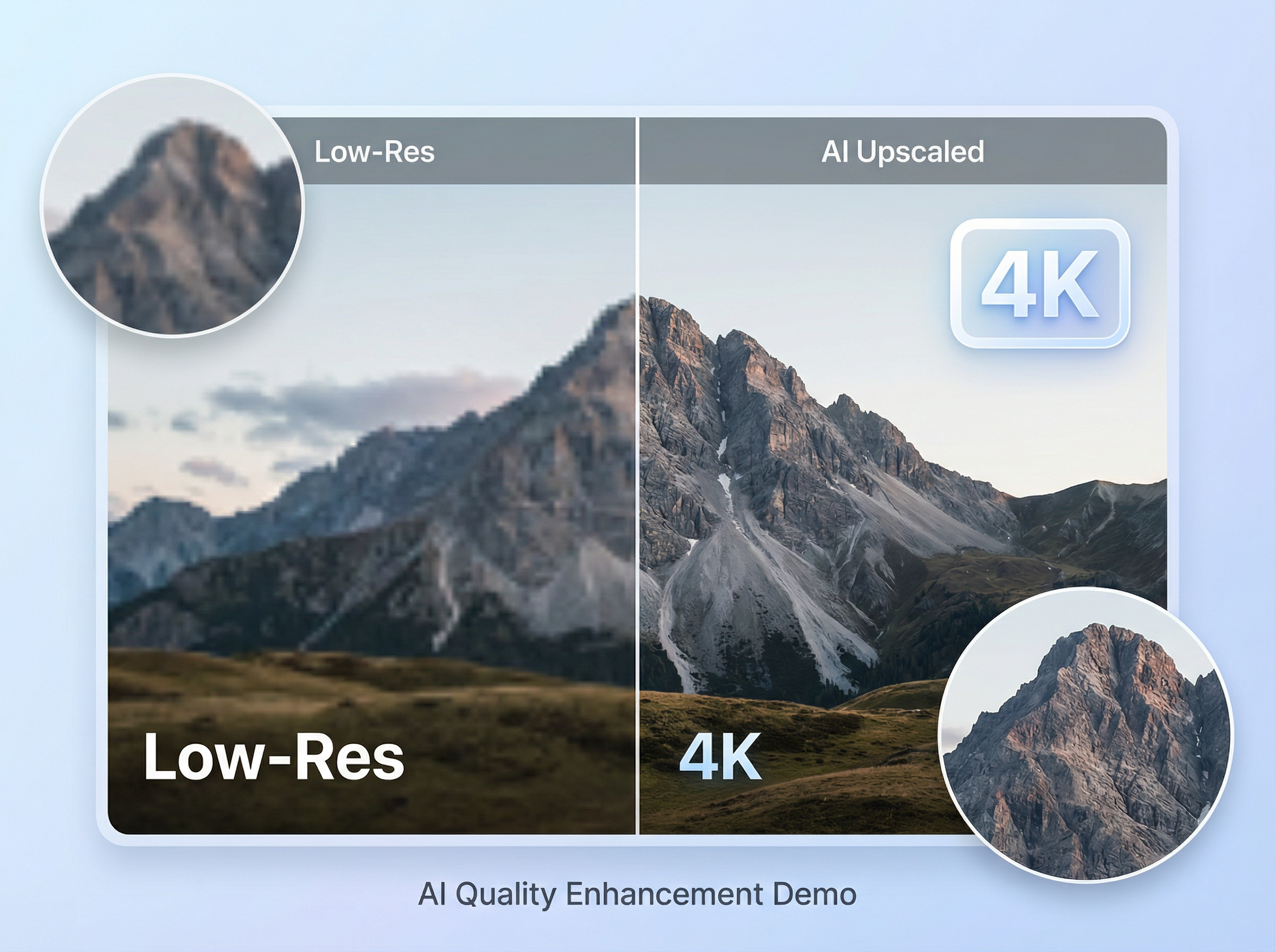
Edit product photos faster and at a lower cost with Framia Pro's AI retouching tool.
Edit any portrait or product photo in Framia Pro using these prompts. Type them directly into the chat editor to get precise, targeted results.
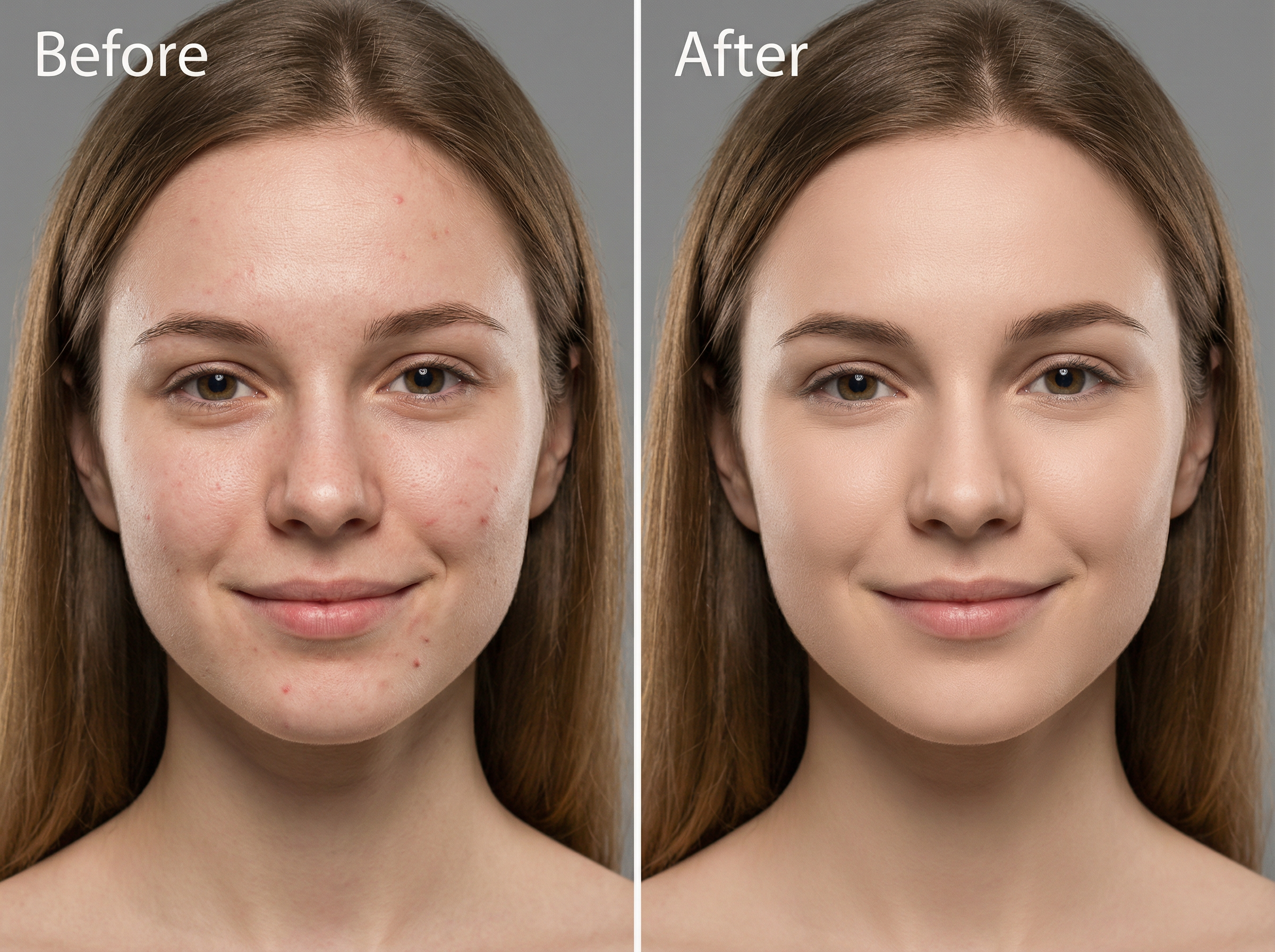
Smooth the skin tone on the face, remove any visible blemishes or spots, and keep the natural texture intact. Do not over-soften the skin or alter the original lighting in the photo.
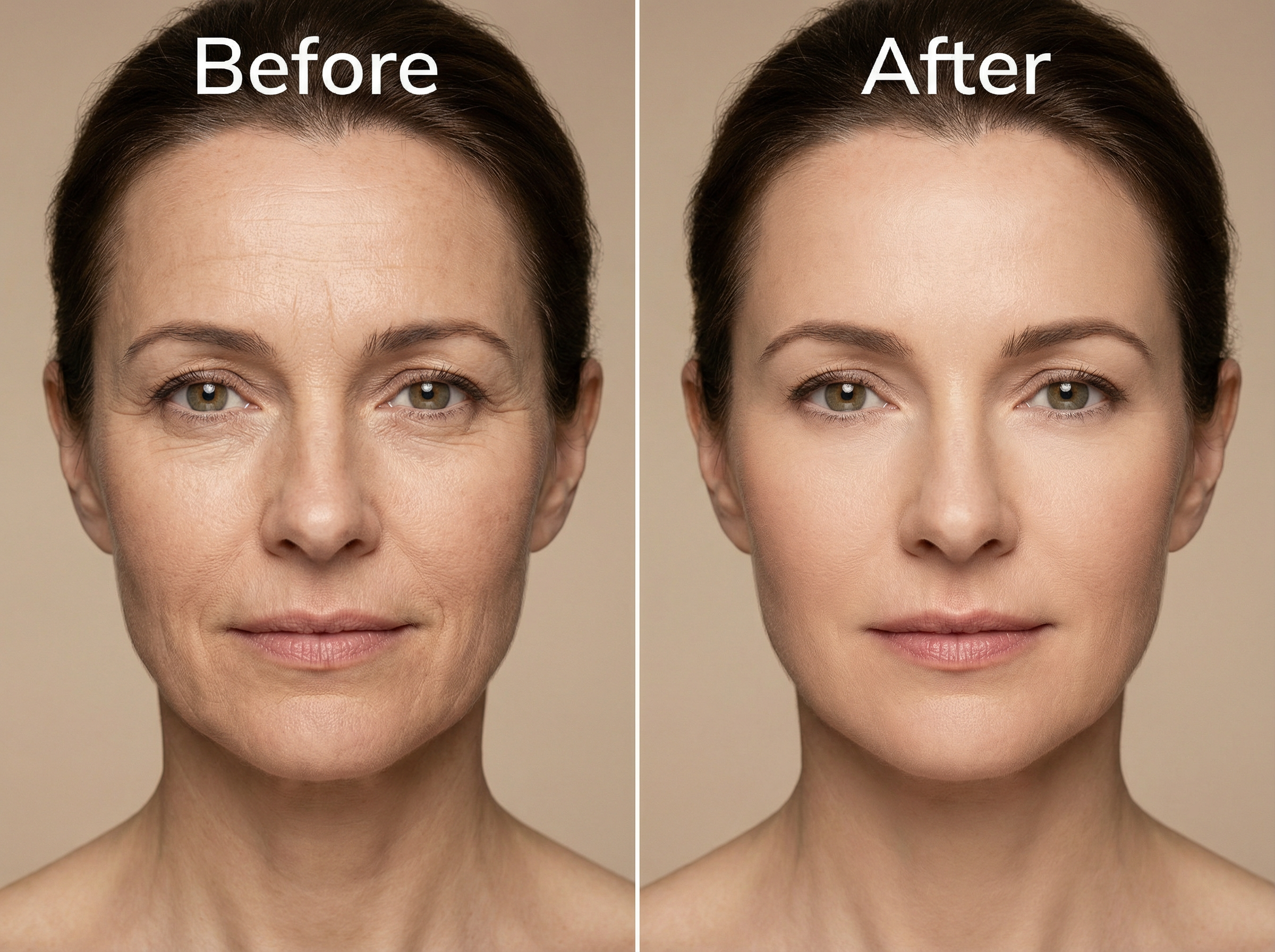
Reduce the appearance of fine lines and wrinkles around the eyes and forehead. Keep the result looking natural and age-appropriate rather than completely smoothed over.
Add subtle makeup to the face and include defined eyebrows, soft lip color, and light contouring. Match the tone to the existing skin color and keep the overall look clean.
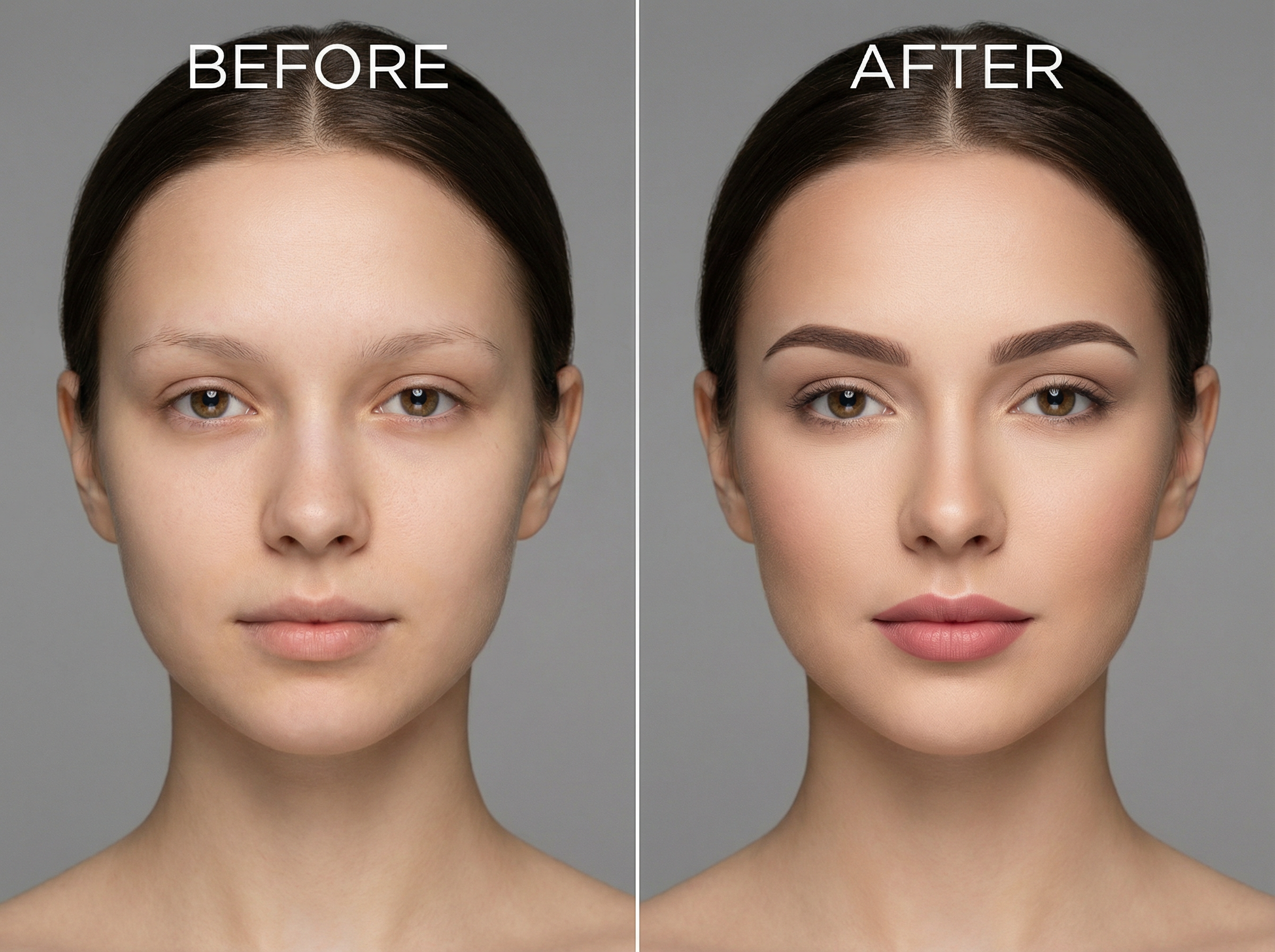
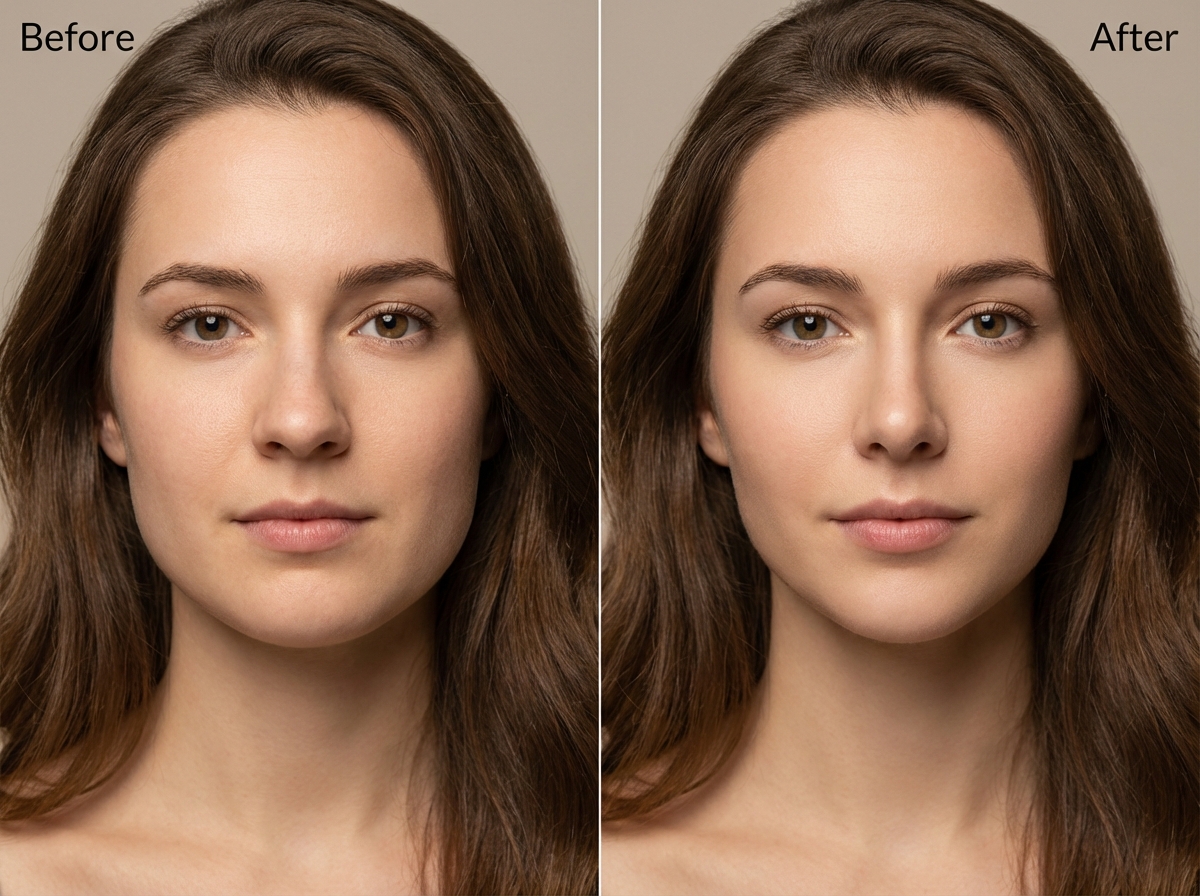
Make the jawline a little thinner, change the width of the nose, and make the face more symmetrical. Make sure that all changes are in line with the way the face already looks so that it doesn't look edited.
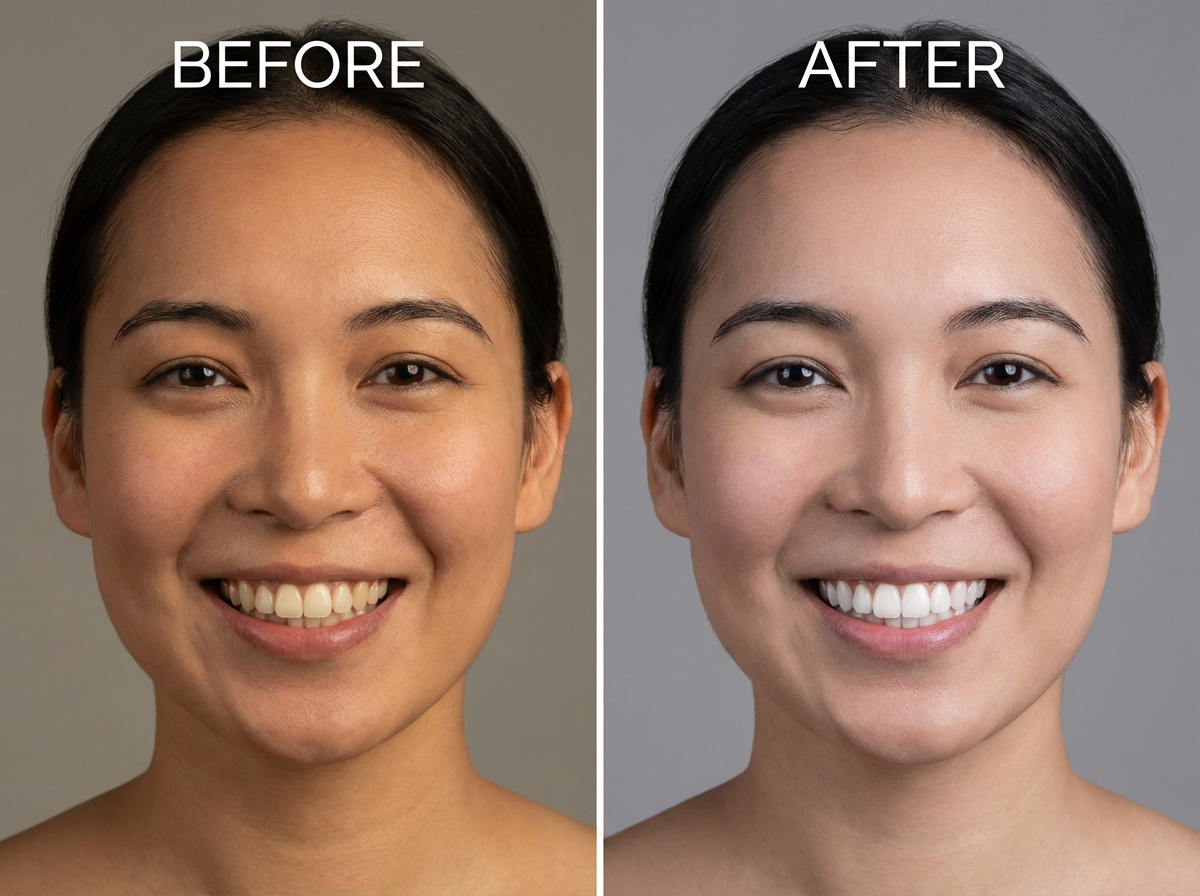
Change the color balance of the whole photo and whiten the teeth by two to three shades. Change the shadows and white balance so the picture looks evenly lit.
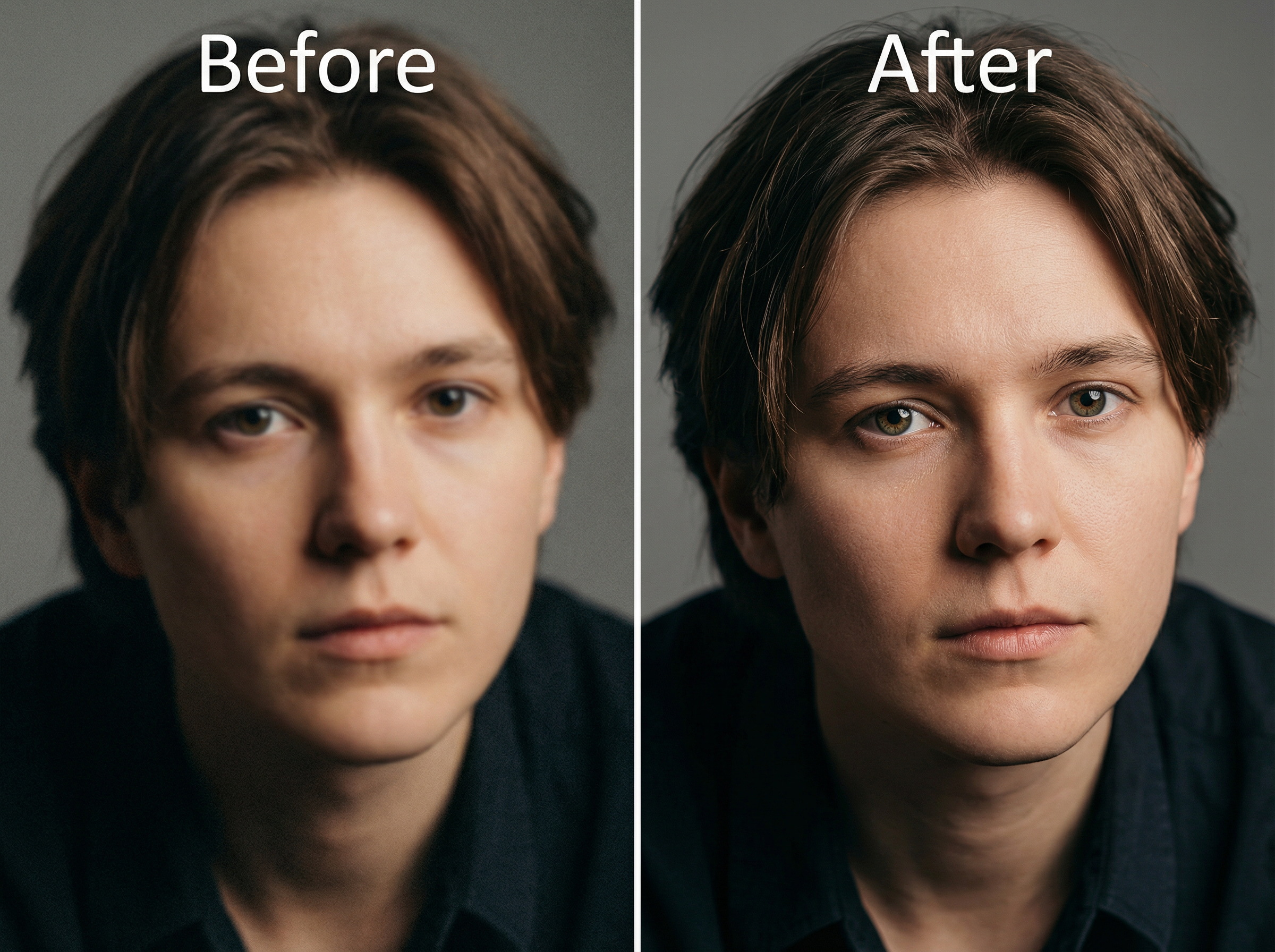
Make the details clearer, get rid of noise in the dark areas, and make the whole picture clearer. Keep the original colors and don't add fake sharpening around the edges of the subject.
See what real users say about editing photos with Framia Pro's AI photo retoucher.



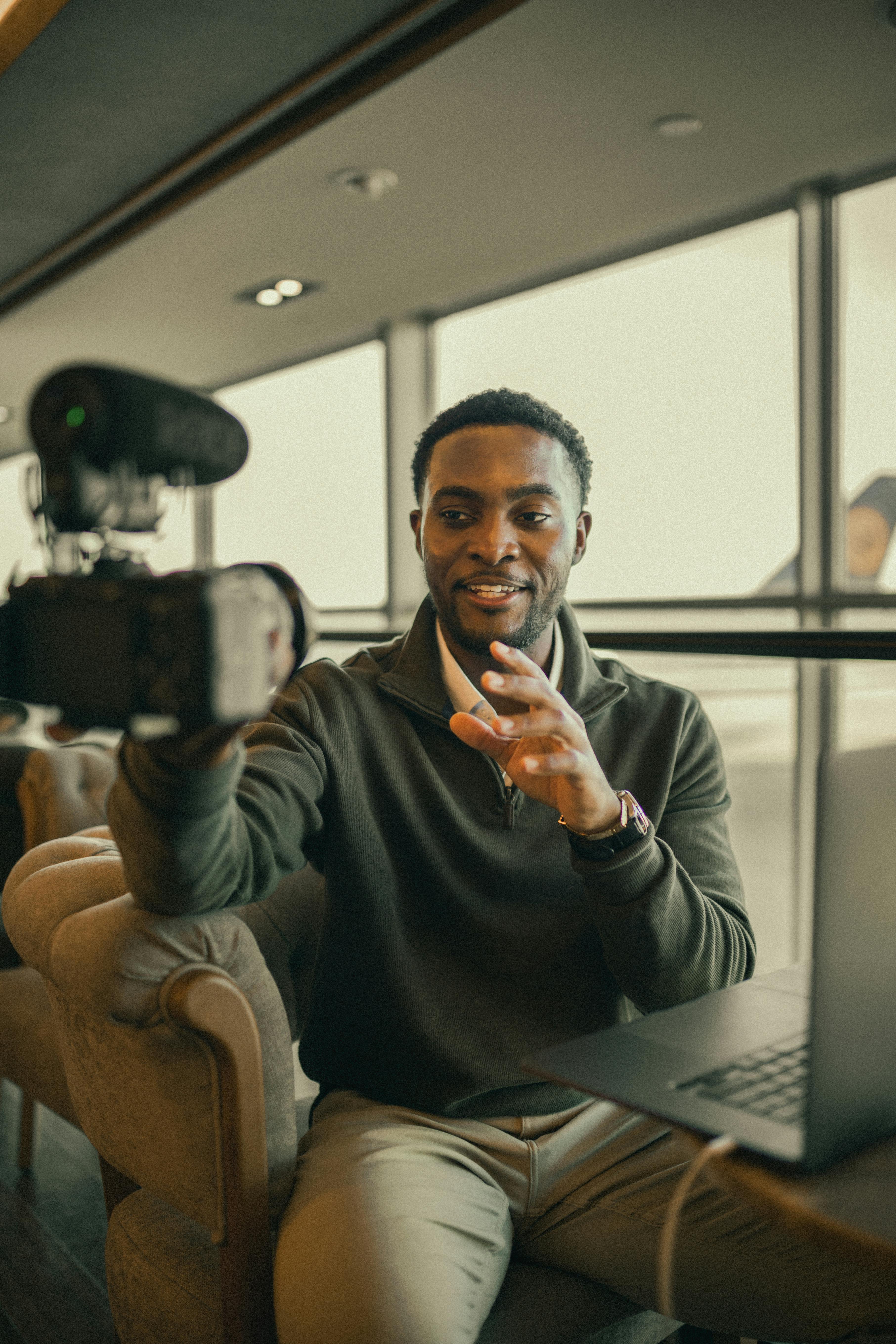
Transform any photo instantly with Framia Pro's AI retouch. Upload, describe your edits, and get flawless, high-resolution results in seconds.